Every business expense you track could save you money on taxes. But keeping receipts organised and categorised is often a hassle. In this guide, I'll show you how to use a simple Google Sheets template to track your deductible expenses – no complicated software required.
Why Track Expenses?
Tracking your expenses helps you:
- Save money on taxes (by claiming deductions).
- Understand your actual business profitability.
- Identify areas where you're overspending.
- Be prepared for tax season with organised records.
Common Deductible Expenses for Freelancers
While tax rules vary by country, most freelancers can deduct expenses that are "ordinary and necessary" for their business. Here are common categories:
| Category | Examples |
|---|---|
| Home Office | Rent, utilities, internet, phone (proportional to workspace) |
| Equipment | Laptop, monitor, keyboard, mouse, external drives |
| Software & Subscriptions | Adobe Creative Cloud, Microsoft 365, project management tools, design software |
| Professional Services | Accountant, lawyer, coach, consultant fees |
| Travel | Flights, hotels, meals (if client-related), public transport |
| Training & Education | Online courses, books, conferences, workshops |
| Marketing & Advertising | Website hosting, ads, social media tools, design services |
| Office Supplies | Paper, ink, stationery, printer cartridges |
| Insurance | Professional liability, health insurance (in some countries), equipment insurance |
| Bank & Payment Fees | Transaction fees, PayPal/Stripe fees, currency conversion fees |
Download the Free Template
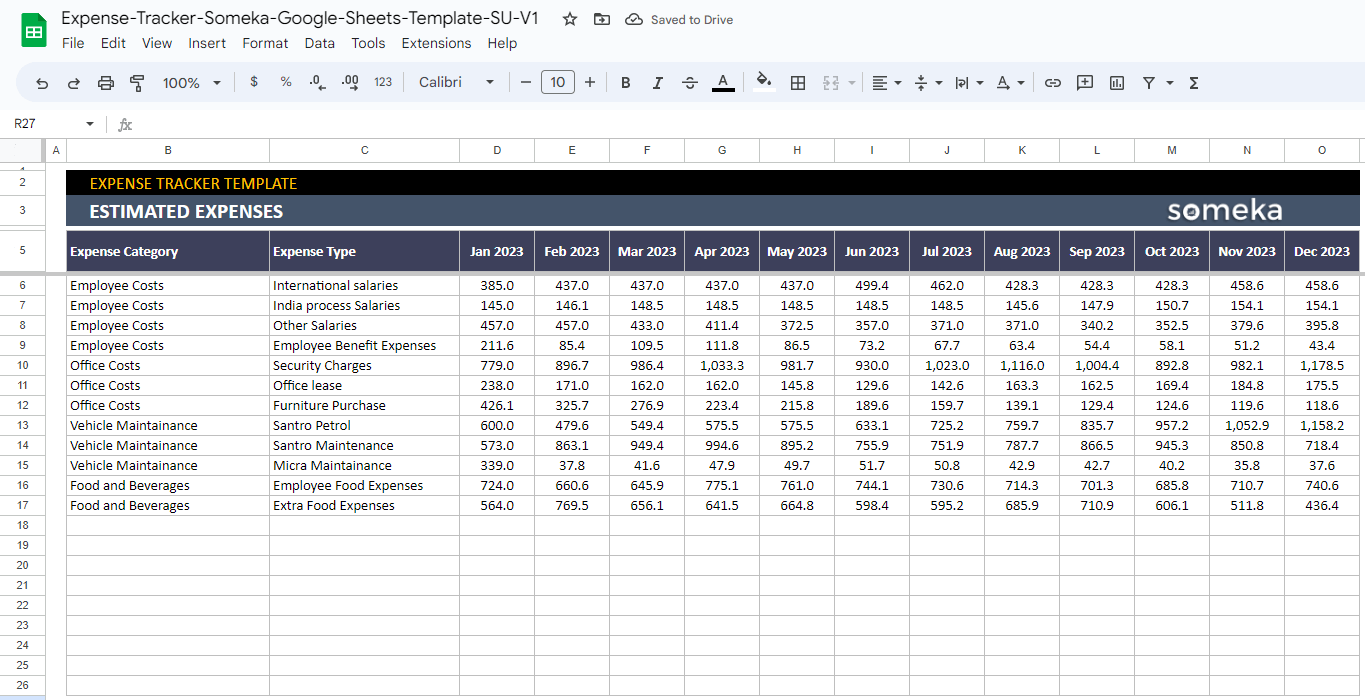
I've created a simple Google Sheets template that you can copy to your own Google Drive. It includes:
- Pre‑filled categories (you can edit them).
- Columns for date, description, amount, and category.
- An automatic summary sheet (totals by category and month).
- Instructions on how to use it.
👉 Click here to copy the template to your Google Drive (replace this link with your actual template link).
Note: If you don't have a Google account, you can download the template as Excel or PDF.
How to Use the Template
- Copy the template to your own Google Drive (use the link above).
- Customise the categories – add or remove categories to match your business.
- Log expenses as they occur – record date, description, amount, and category.
- Review the summary to see totals by category and month.
- Save receipts – optionally attach digital receipts (you can add a link column).
Tips for Effective Expense Tracking
- Log expenses immediately – don't wait until the end of the month.
- Keep digital copies of receipts – use a free scanner app (e.g., Adobe Scan, CamScanner).
- Separate business and personal expenses – use a dedicated business bank account if possible.
- Review monthly – check if you're overspending in any category.
- Add notes – note who you paid and why (useful for tax audits).
Can You Automate This?
Yes! You can use tools like Zapier or Make to automatically add expenses from your bank or credit card to your Google Sheets template. I'll cover automation in a future article.
Conclusion – Small Effort, Big Savings
Tracking your expenses might seem tedious, but it pays off at tax time. With this free template, you can start today – no expensive software needed. Download the template, customise it, and make it a weekly habit.
Get the template: Copy to Google Drive →
Disclaimer: This is a general guide. Consult a tax professional for advice specific to your situation.